
Opening files
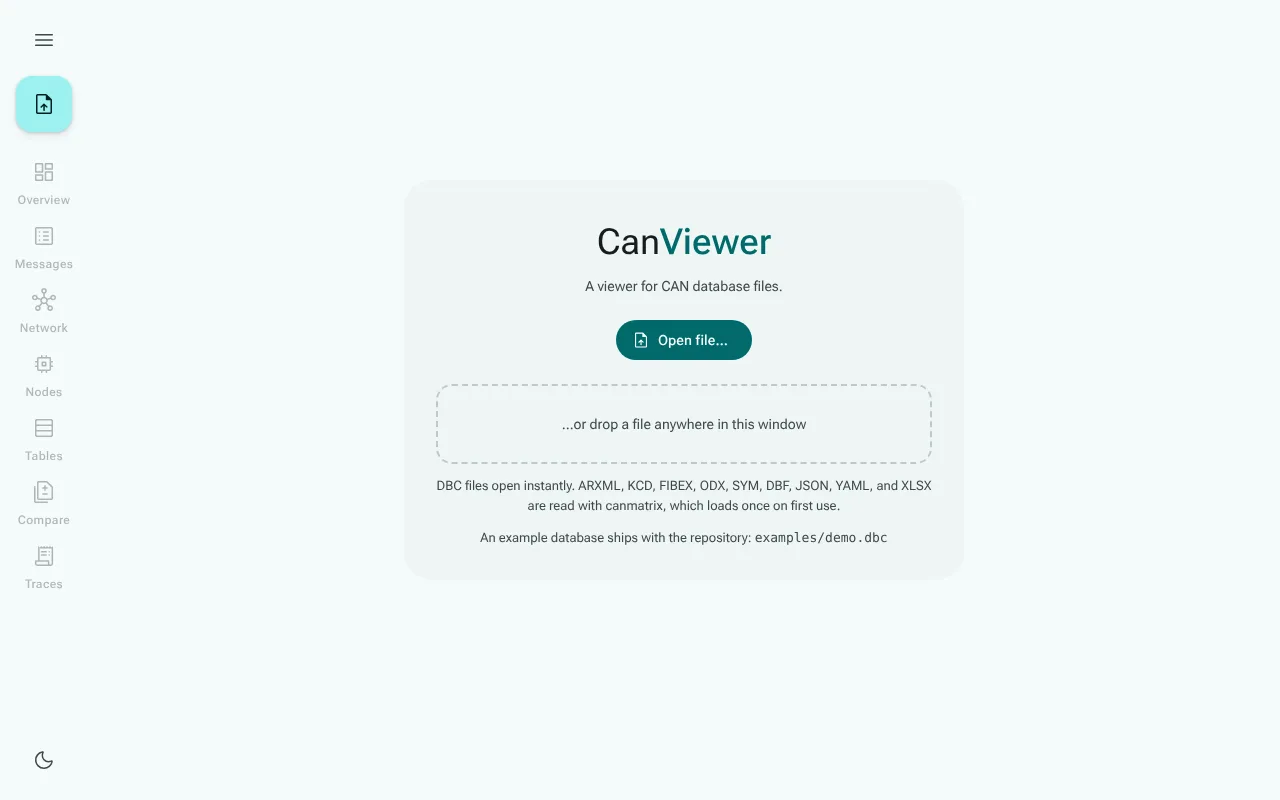
Three ways to open a file
- Open file… on the welcome screen, or the round upload button at the top of the navigation rail, opens your system's file dialog.
- Drag and drop: drop a file anywhere on the window. While you drag, an overlay says Drop the file to open it.
- Reload: the last file you opened comes back when you reload the page or open the app again (see below).
Only one database is open at a time; opening another replaces it. With unsaved edits, CanViewer asks first.
Which files go where:
- A file whose extension is one that canmatrix reads (
.arxml,.kcd,.sym,.dbf,.xlsx,.json,.yaml,.yml,.xmlfor FIBEX,.odx) is imported through canmatrix. See Importing other formats. - A log,
.ascor.log, opens in the Traces view and leaves the database as it is. - Every other file is read as DBC text, whatever its extension (
.dbc,.txt, or none). - The file dialog offers every format and the logs, and so does drag and drop. A file without an extension opens by drag and drop, or in the file dialog once you choose to see all files (where your system offers that). A file with several clusters lets you pick one.
- Dropped on the Compare page, a file opens as the other version to compare with, and the open file stays open.
Encodings
DBC files come in two encodings in practice: UTF-8, and the Windows code page that Vector's tools write (Windows-1252, a superset of Latin-1). CanViewer reads a file as UTF-8 when its bytes are valid UTF-8, and as Windows-1252 otherwise, so umlauts in comments and value descriptions come out right either way.
When a line cannot be read
CanViewer does not give up on a file because of one bad line. A line it cannot understand is skipped and recorded as a parse problem, with its line number, the reason and the line itself; everything else loads normally. The number of problems shows as a badge on Overview in the navigation rail, and the overview lists them:
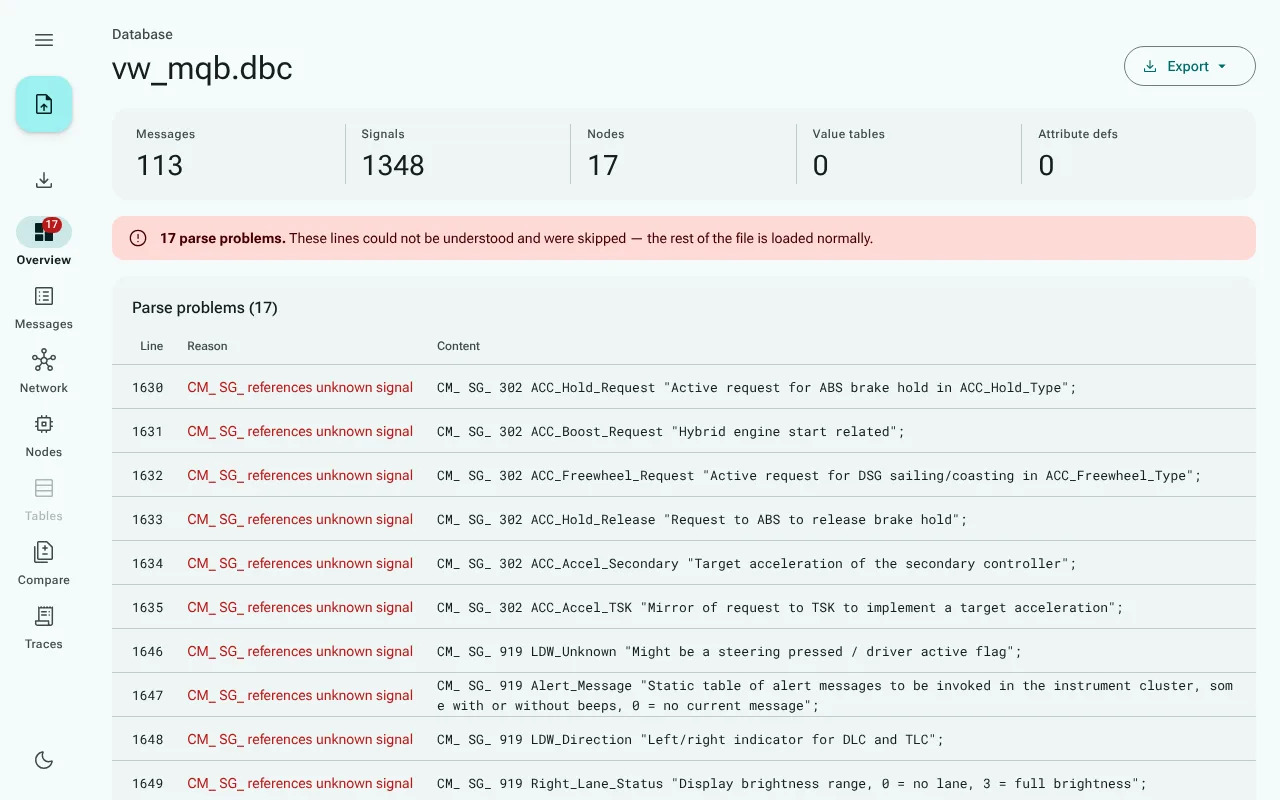
Statements that CanViewer recognizes but does not display, such as NS_ or SIG_GROUP_, are not problems: the overview counts them under Not displayed. The DBC reference lists what is modelled and what is not.
For imported formats, whatever canmatrix reports about the file (warnings, errors, and lines its own readers drop) becomes a parse problem in the same list.
The last file comes back
The last file you opened is kept in your browser, on your machine only, and opened again on the next visit: a DBC file in local storage, a file imported through canmatrix in IndexedDB, with the cluster you picked. A file too large for the browser's storage quota is not kept. It opens normally, it just does not come back after a reload.
If CanViewer fails
Should a view ever run into an error, CanViewer shows a recovery screen, Something went wrong, instead of a blank page. Because the last file opens again on every start, a file that makes a view fail would make it fail after every reload too, so the screen offers two ways out:
- Reset stored file forgets the stored file, DBC or imported, and the link to the view, and starts CanViewer empty. The file on your disk is not touched.
- Reload tries again with the stored file.
Error details shows the error and where it happened; include it when you report the problem. The screen takes the keyboard focus, so Tab goes straight to its buttons.
Links to a message
Every view has its own address: the part after # in the address bar names the message, node or value table on screen, for example #msg=256/EngineSpeed. Bookmark it, or use Copy link on a message page. Opening such a link restores the stored file and goes straight to that view. The deep link reference lists the forms.
A link only works in a browser that has the file stored: the file itself is never part of the link.